Add a programme
Set up something new — a weekly session, a tournament, a holiday programme.
On your home page, press “New programme”.
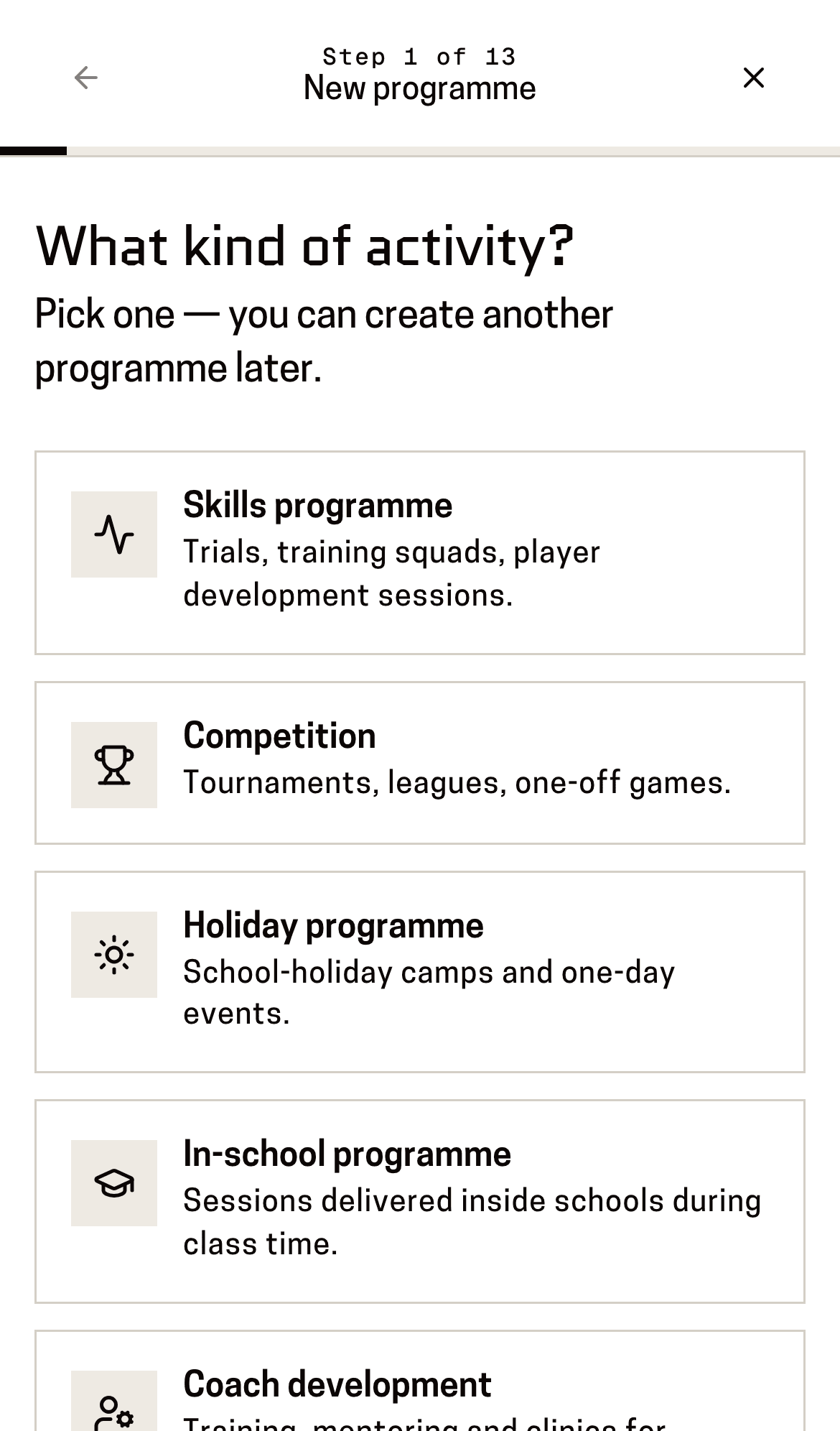
You'll know it worked when: One question on the screen: “What kind of activity?”
You do this once per programme, not once per week — Baseline makes the weekly rows for you. If your home page is the dashboard rather than a list of programmes, press “New programme” on the Settings page instead.
Tap the kind of activity this is.
You'll know it worked when: The next question replaces it. Baseline asks one thing at a time, all the way through.
Nothing is saved yet. You can press Back at the top at any point, and closing the screen loses nothing you'd mind losing.
At “How often does it run?”, choose “Regular” if it repeats week after week, or “One-off” if it happens once.
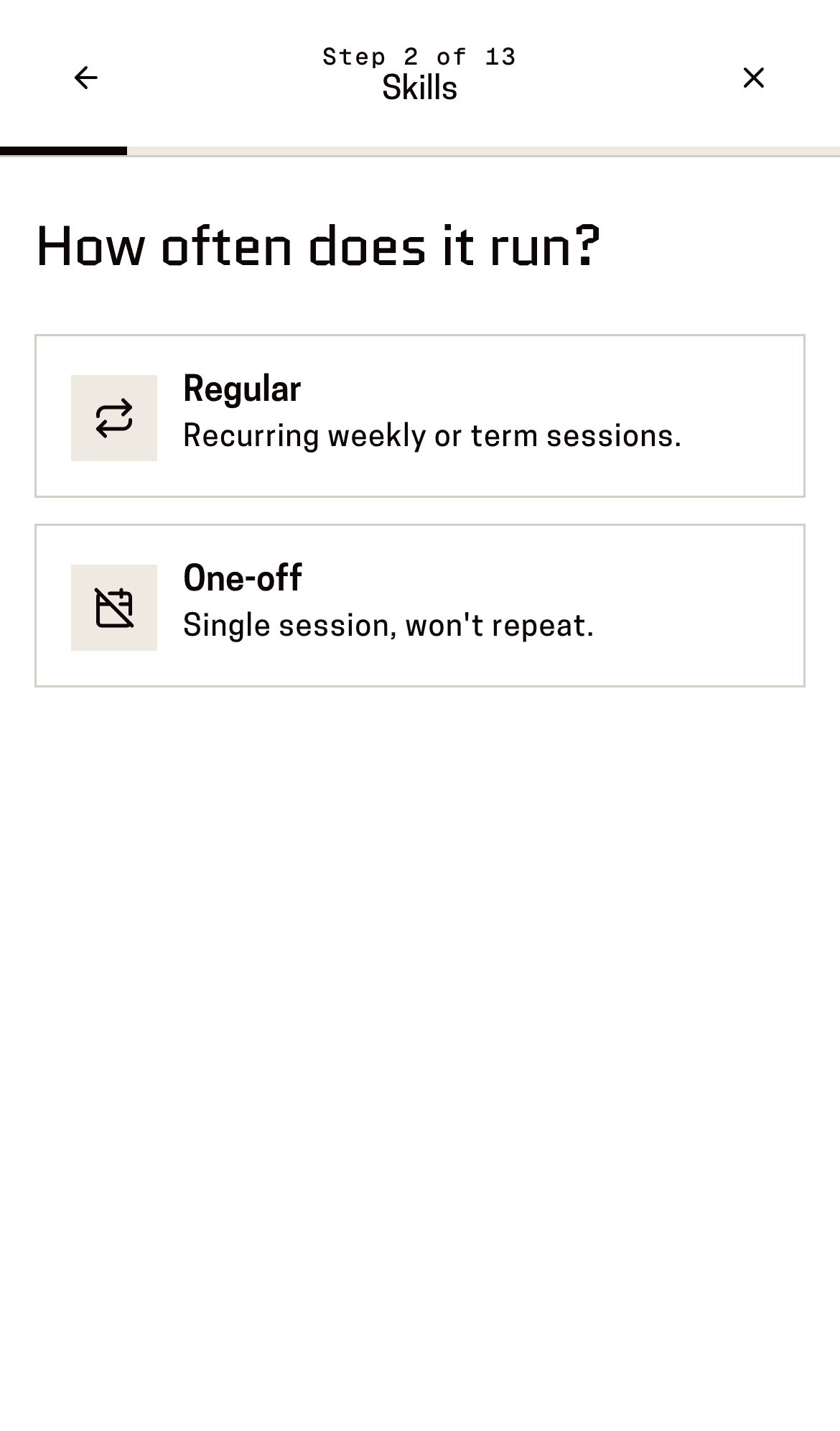
You'll know it worked when: The dates question.
This is the answer that matters most. “Regular” makes Baseline create a row for every week between your two dates, ready for you to fill in. “One-off” makes a single row. Some kinds of activity never ask — a competition asks “Which format?” instead.
Set the dates. For a regular programme that's the first and last day; for a one-off it's just the day.
You'll know it worked when: The venue question.
Pick the venue from the list, or type a new one. If you'd rather not say, press “Skip”.
You'll know it worked when: The next question — how long each session runs, for the kinds of activity where that applies.
Answer the remaining questions as they come: age groups, how many kids took part, how many coaches, and what it costs to take part.
You'll know it worked when: One question per screen, with a progress indicator at the top.
Approximate numbers are fine for the coach counts. Set the cost to free if there's no charge.
At “Name this programme”, give it a short name you'll recognise later, and continue.
You'll know it worked when: A tick and the words “Programme created”.
This is the moment it's saved. Everything after this point is being added to a programme that already exists — so if something interrupts you now, the programme is safely there.
Add a picture if you have one, or press “Skip”.
You'll know it worked when: The notes question.
You can add photos later from the programme's own page.
Write a note about how it went if you want to, or press “Skip”.
You'll know it worked when: The branding question, “Was the event branded?” — for most kinds of activity, the last one.
Answer whether Basketball New Zealand branding was up and visible, and finish.
You'll know it worked when: The programme's own page, with a row for each date ready for your numbers.
This page is for: Coach, Sub-association lead.