Change your projection
Adjusting the numbers once the year is under way.
From your dashboard, press “Edit projection”.
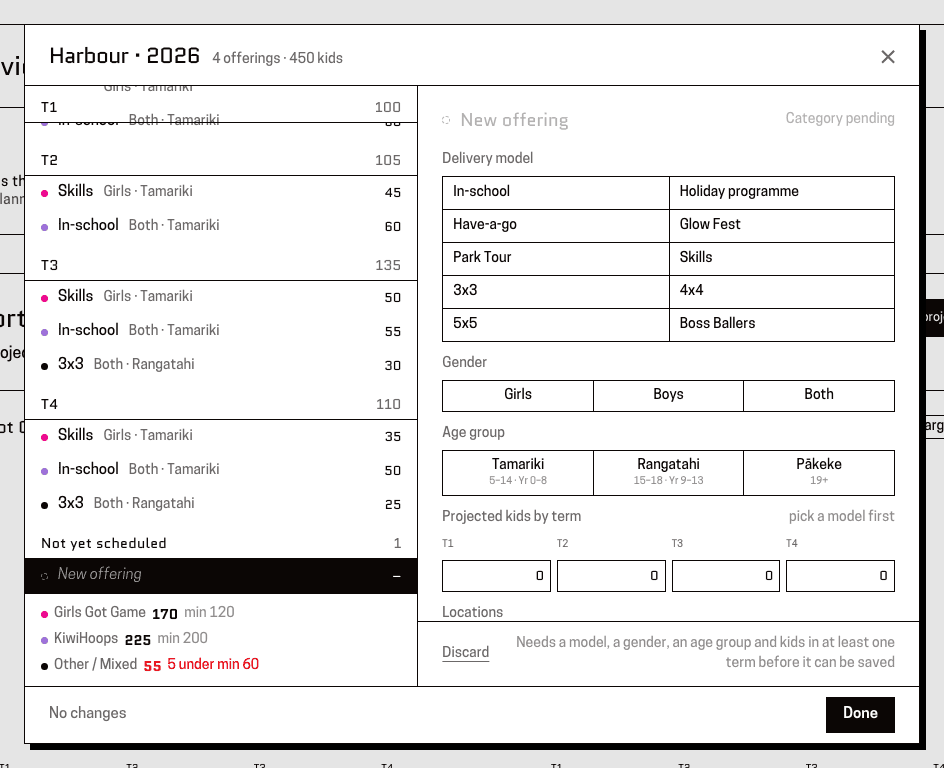
You'll know it worked when: A panel listing your offerings down one side.
Pick the offering you want to change from the list down the side, or press “+ Add an offering” at the foot of it for a new one.
You'll know it worked when: Its details and its four term boxes, ready to edit.
Change the numbers for whichever terms have moved.
You'll know it worked when: The year total updating as you type.
“Zero it” clears every term at once, for something you've decided not to run after all.
Press “Save changes”.
You'll know it worked when: A message saying “Projection updated”, and the dashboard figures behind it move to match.
Closing the panel without saving throws the edits away — it asks first if you have unsaved changes.
This page is for: Sub-association lead, Association lead, Admin.