Fill in a session's numbers
Record how many took part on a given date.
On your home page, find the programme under “My recurring” and tap it.
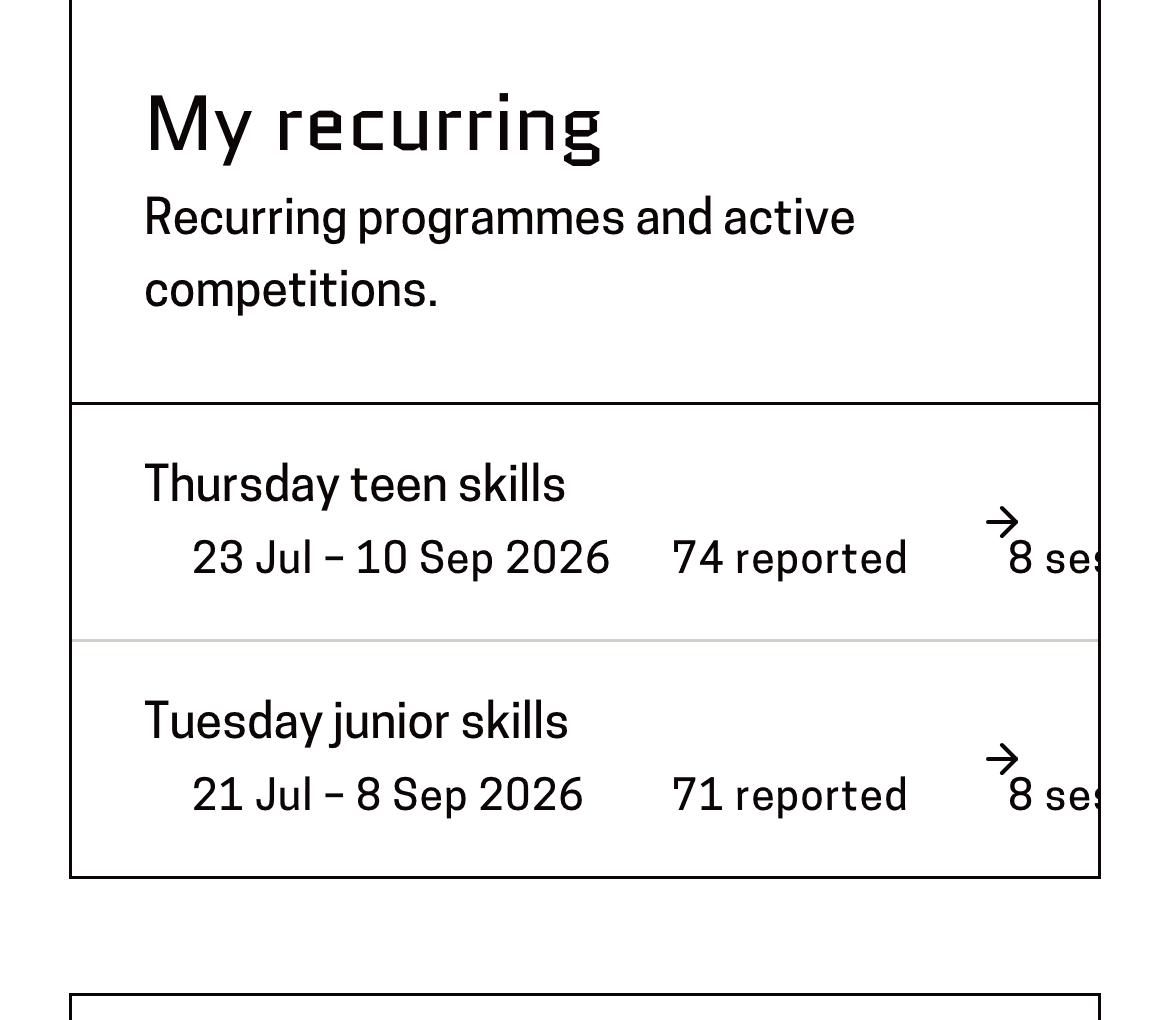
You'll know it worked when: The programme's page, with a table of dates down the screen.
The list shows the name you gave each programme, with its venue and dates underneath. A one-off is different: it sits in “My one-offs” with its pencil right there in the table, and no page to open.
Find the row for the date you're reporting on.
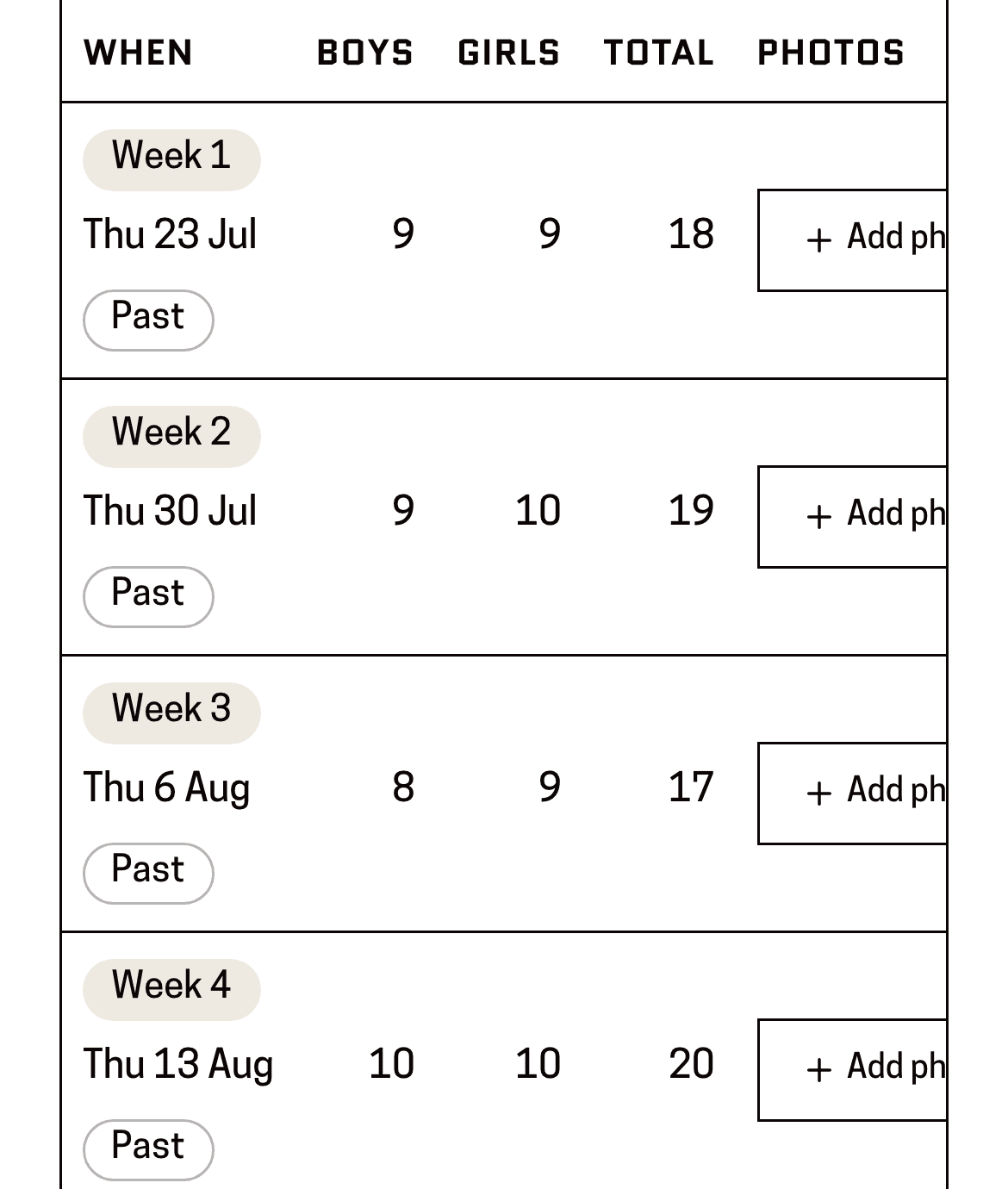
You'll know it worked when: A row showing the week number and date, marked “Past” or “Upcoming”.
Press the pencil at the right-hand end of that row.
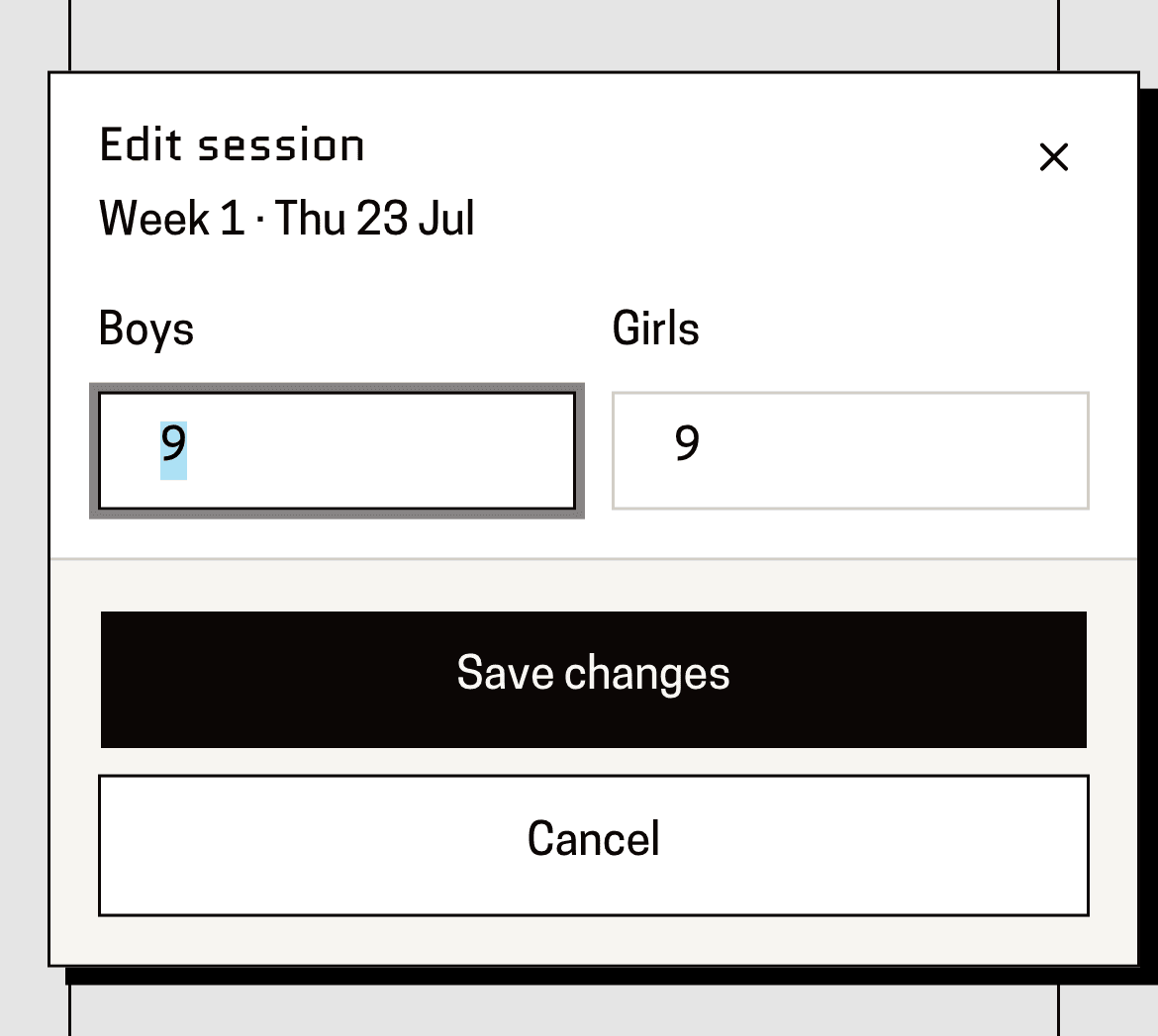
You'll know it worked when: A box headed “Edit session”, with spaces for Boys and Girls.
Type the two numbers, then press “Save changes”.
You'll know it worked when: The box closes and your numbers appear in that row, with the Total filled in beside them.
You don't type the total — Baseline adds the two together for you.
If it's the same number every week, type the two numbers under “Set the count for every session” at the top of the page and press “Apply to all”.
You'll know it worked when: A message saying “Applied to every session”, and every row filled with those numbers.
You can still go back and correct a single week afterwards — editing one row only changes that row.
This page is for: Coach, Sub-association lead.